
Do windows 10 patching in offline with our simple guidance on your PC. now a days windows have the facility for updating your patches in offline mode with an simple.
Steps to update Windows 10 patching in offline
- On the web browser, navigate to the official website of the WSUS Offline Update page.
- Click the Downloads tab, move to the Most Recent Version section, and select the version to start downloading the WSUS Offline Update software on your Windows computer.
- After downloading the software, go to the Downloads folder and double-click the WSUS Update Offline file.
- Search for the Update Generator.exe file to update windows 10 patching in offline.
- When you see the next window on the screen, click the Windows tab.
- Select the checkbox next to the appropriate option below the name of the version of the computer’s Operating System.
- Make sure to checkmark the boxes next to the Include Service Packs and Include Windows Defender Definitions options.
- Move to the Office tab. After selecting the necessary options, click the Start button at the bottom-left corner of the screen.
- Now, the Command window opens.
- Close the Command window. When you see the prompt box on the screen, click the No button.
- Close the Command window. When you see the prompt box on the screen, click the No button.
- Select the Client file and click the UpdateInstaller.exe option.
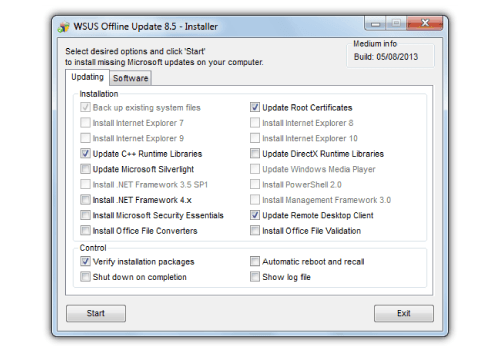
- When you see the WSUS Offline Update Installer window, select the checkbox next to the Install NET Framework 3.5 option.
 Setup-Windows 10