
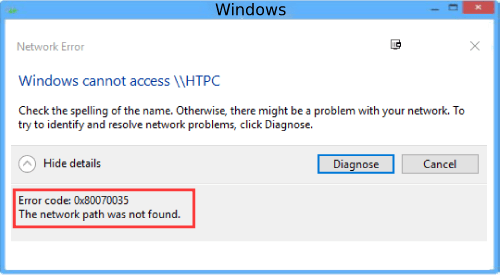
The error codes prompts that “the network path was not found” on the device. It usually occurs when the user types an incorrect path name. Windows users can connect to another computer without any cable connection between them by sharing the same network. This error also occurs when the guest trying thttps://windows10.business.blog/2020/01/23/windows-error-code-0x80070035/o access a folder, types a wrong path then update Windows Error Code 0x80070035.
Carry out these steps to resolve the Windows Error Code 0x80070035
- First, recheck the sharing settings and verify that the network is shared appropriately.
- To check the Sharing settings, navigate to the drive you wish to access and give a right-click on the storage drive to open Properties.
- Select the Sharing tab and verify that the network path displays Not Shared.
- Click on the Advanced Sharing button to access the settings.
- Select the Share this folder checkbox and verify the Share name inside the Settings section
- Select Apply –> OK to save the changes.
- Close the window and press Windows + R shortcut keys on the keyboard to open the Run panel.
- Type the name of the folder in the text box and click on the OK button.
- Now, check if you could access the same folder again.
- If the problem persists, follow the below-mentioned steps to share using the IP address of the computer and to fix the Windows Error Code 0x80070035
- Open the Windows desktop and type ‘cmd’ in the search box.
 Setup-Windows 10