
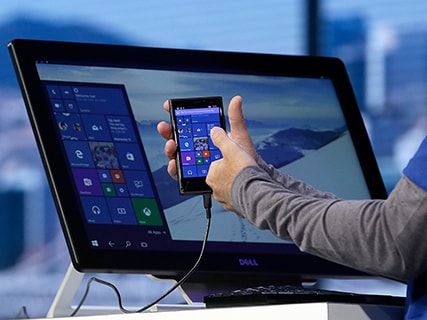
Continuum is one of the new feature in Windows 10 that comes into play with both the Start screen and the modern apps, switching the view to the format suited to PC or tablet use.
This feature turns your Windows phone into a big screen projector and a big time productivity tool. You can use an adapter or dock to connect a TV or any monitor, and then open any app to see a content on a larger screen. Show off your favorite stuff on a Windows 10 PC without the use of an adapter or dock while you use the continuum In windows 10.
YOUR WINDOWS PHONE BECOMES COMPUTER
- Use your Windows phone like a PC
- You can create and edit office documents on your phone as like in PC
- You can also send email and can even type text messages on your connected screen.
- When you are done with all of your stuffs, it is saved on to your phone.
- Watch videos, upload your photos, or surf the web on your connected screen.
- The above process has to be done while you using the continuum In windows 10
- Even when you connect your phone to a PC or to any display or monitor, you can still use your phone as an actual phone.
- You make and receive phone calls.
- You can send and receive text messages
- You can also check your social media apps.
- If your phone is connected to a PC or to any display and you want to use your phone to control your connected screen with the help of continuum In windows 10
Change your Background
You can change or set the background photo on your connected screen more often as you like. To change the background photo on your connected screen continuum In windows 10 has the option for that,
- Click on the Start icon, swipe over to the All apps list, and then select Settings from the list, then select Personalization -> Start.
- Under Second display, make your own choice.
Set up Continuum for your Windows phone
- A TV or monitor with HDMI input.
- A Mobile phone running Windows 10 that is compatible with Continuum.
- A compatible accessory to connect your phone with the TV or monitor.
- A power outlet in your devices to plug in your dock or adaptor.
- The two types of accessories that you can use to connect your phone with a TV or monitor.
- For wired connection, you can use wired docks to connect your phone with a TV or monitor.
- For wireless connection, use Mira cast adaptors to connect your phone wirelessly with a TV or monitor.
 Setup-Windows 10